# Hướng dẫn sử dụng Explore

# 1. XTABLE

XTABLE là thuật ngữ chỉ quy trình kết hợp dữ liệu từ nhiều bảng dựa trên các cột khóa chung để tạo ra một bảng dữ liệu mới.

# XTABLE là gì?

 XTABLE là quá trình kết hợp dữ liệu từ nhiều bảng dựa trên một hoặc nhiều cột khóa chung. Các cột khóa này là những cột có giá trị tương đồng giữa các bảng. Các bảng dữ liệu đầu vào có thể chứa các cột khác nhau, nhưng chúng có ít nhất một cột khóa chung dùng để kết nối dữ liệu. Phép kết hợp này có thể tương tự như các phép nối (JOIN) như INNER JOIN, LEFT JOIN, RIGHT JOIN, FULL OUTER JOIN tạo ra một bảng dữ liệu mới chứa các cột được chọn từ các bảng đầu vào, kết hợp dựa trên các cột khóa.

<span style="mso-spacerun: yes;"> </span>Quy trình tổng quát bao gồm việc xác định các bảng và cột khóa, chọn các cột cần thiết từ mỗi bảng và kết hợp các bảng dựa trên các cột khóa này. Trong đó có hai trường hợp khi tổng hợp dữ liệu:

\- Trường hợp 1: Tổng hợp hai hay nhiều tập dữ liệu theo khóa chính và chỉ lấy các dòng dữ liệu theo cột khóa chính ở tập dữ liệu đầu vào.

![](https://book.inetcloud.vn/uploads/images/gallery/2024-07/embedded-image-py0uyzph.png)

<span style="mso-no-proof: yes;"> </span>

<span style="mso-fareast-font-family: 'Times New Roman';"><span style="mso-list: Ignore;">-<span style="font: 7.0pt 'Times New Roman';"> - </span></span></span>Trường hợp 2: Tổng hợp hai hay nhiều tập dữ liệu theo khóa chính và lấy tất cả các dòng dữ liệu ở các tập dữ liệu.

![](https://book.inetcloud.vn/uploads/images/gallery/2024-07/embedded-image-lhkmjqft.png)

# XTABLE sử dụng như thế nào trên hệ thống?

Thực hiện trên hệ thống theo các bước hướng dẫn sau:

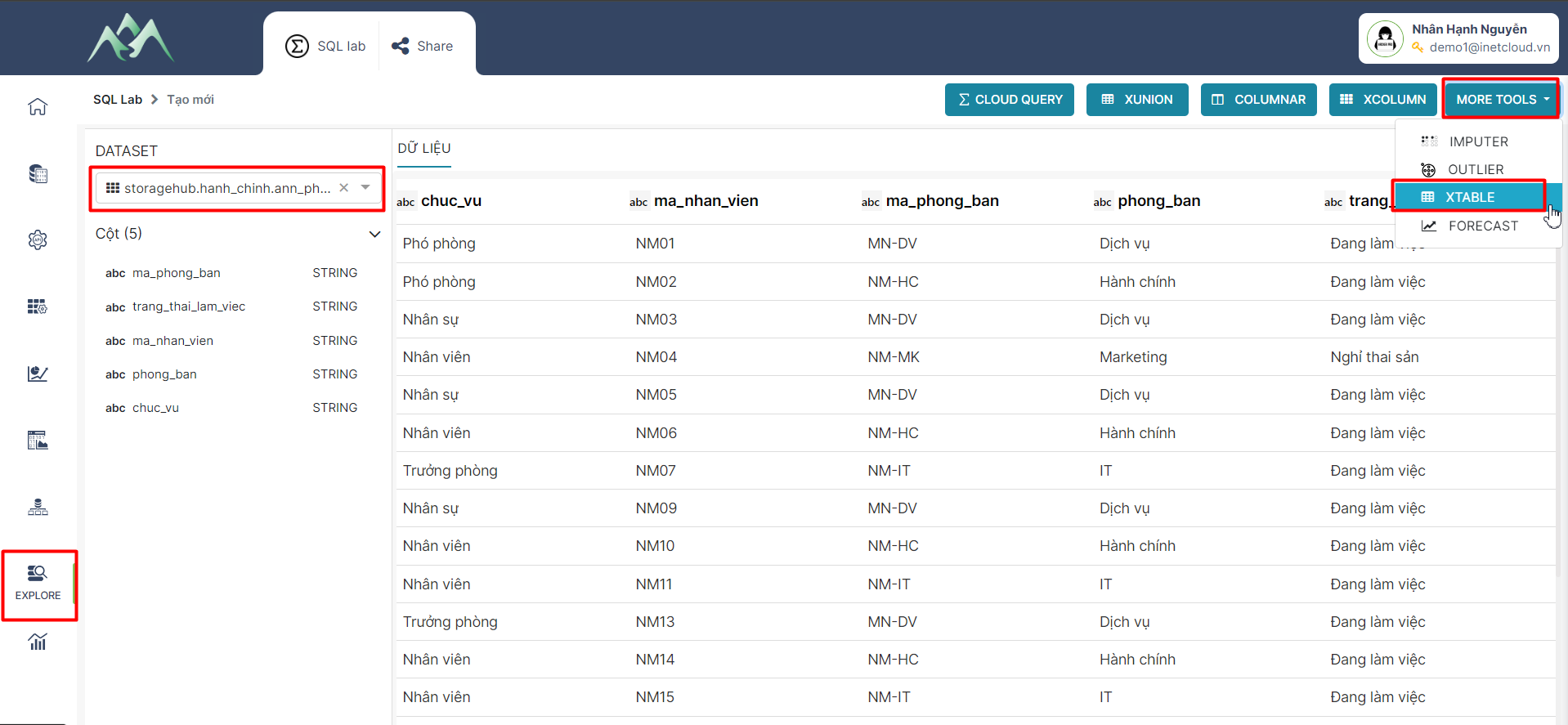
\- Bước 1: Xác định tập dữ liệu đầu vào. Vào hệ thống chọn module Explore, chọn tập dữ liệu cần tổng hợp (Bảng 1) và chọn XTABLE.

<table border="1" id="bkmrk-" style="border-collapse: collapse; width: 100%;"><colgroup><col style="width: 99.881%;"></col></colgroup><tbody><tr><td>[![image.png](https://book.inetcloud.vn/uploads/images/gallery/2024-07/scaled-1680-/9ZAimage.png)](https://book.inetcloud.vn/uploads/images/gallery/2024-07/9ZAimage.png)

</td></tr></tbody></table>

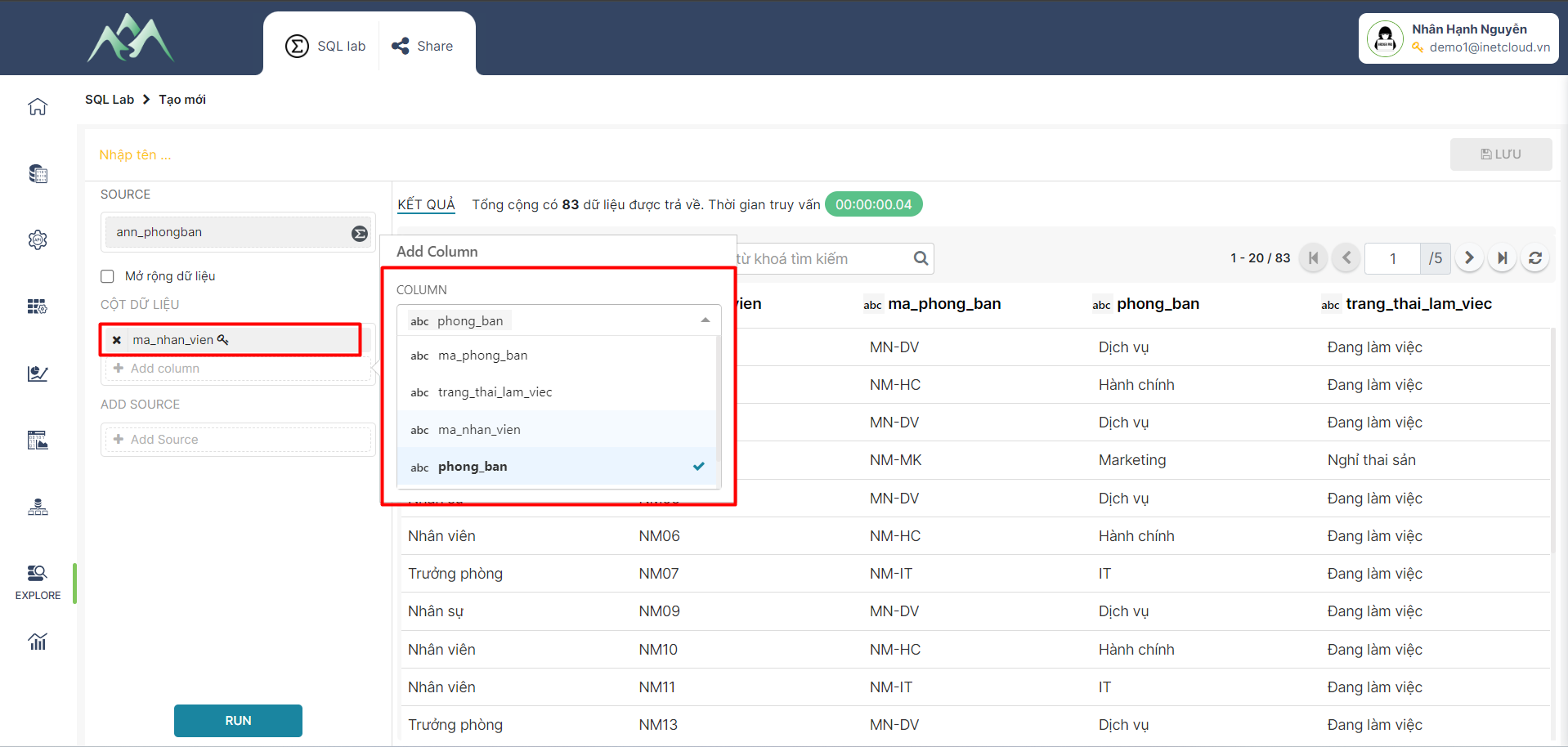
<span style="mso-fareast-font-family: 'Times New Roman';"><span style="mso-list: Ignore;"><span style="font: 7.0pt 'Times New Roman';">- </span></span></span>Bước 2: Xác định cột khóa chính của tập dữ liệu đầu vào. Trên hệ thống chọn trường thuộc tính làm khóa chính. Khóa chính là điều kiện để tổng hợp các giá trị tương đồng giữa các tập dữ liệu.

<table border="1" id="bkmrk--1" style="border-collapse: collapse; width: 100%;"><colgroup><col style="width: 99.881%;"></col></colgroup><tbody><tr><td>[![image.png](https://book.inetcloud.vn/uploads/images/gallery/2024-07/scaled-1680-/Yq5image.png)](https://book.inetcloud.vn/uploads/images/gallery/2024-07/Yq5image.png)

</td></tr></tbody></table>

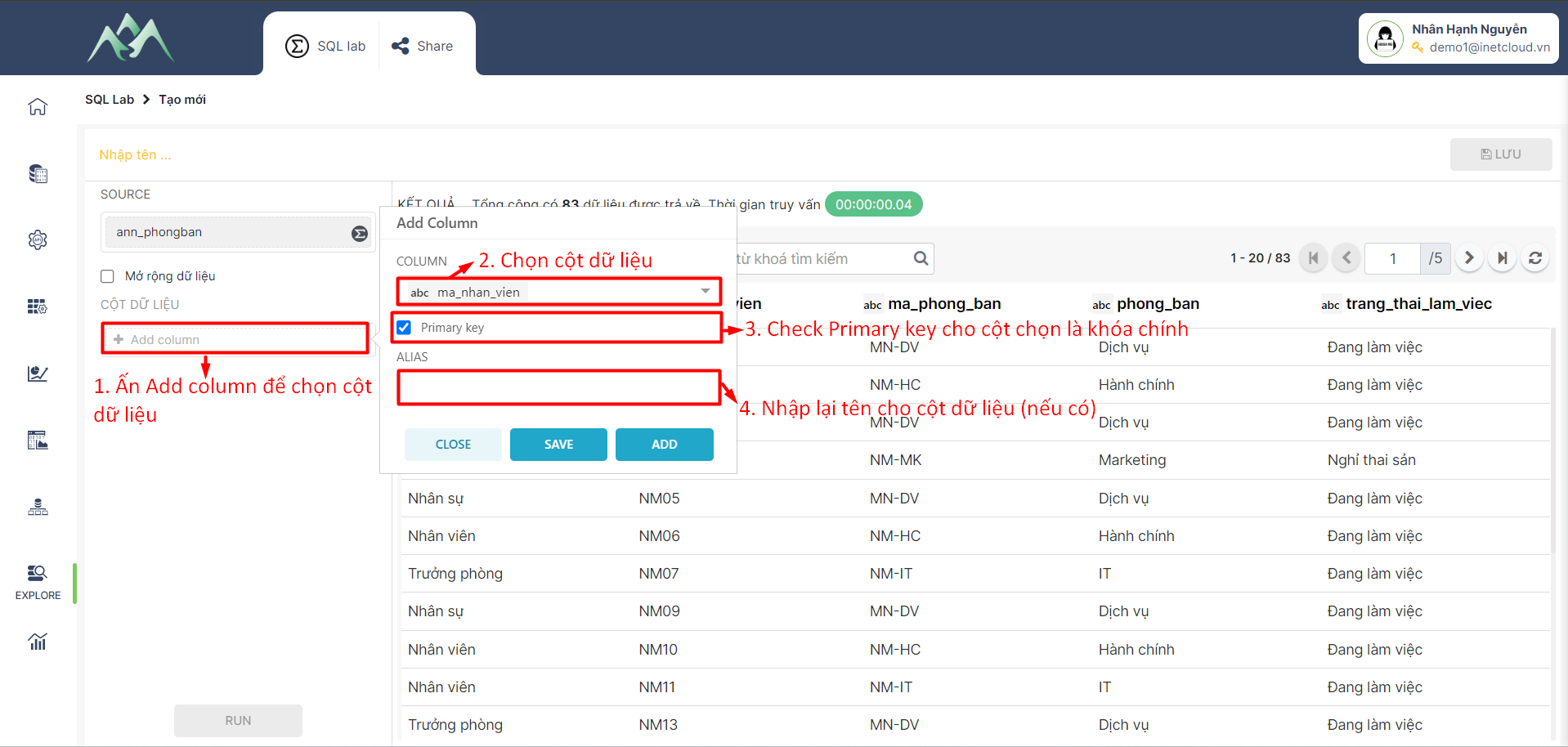
<span style="mso-fareast-font-family: 'Times New Roman';"><span style="mso-list: Ignore;">-<span style="font: 7.0pt 'Times New Roman';"> </span></span></span>Bước 3: Xác định các cột cần chọn từ tập dữ liệu đầu vào. Trên hệ thống chọn Add column cho tập dữ liệu XTABLE.

<table border="1" id="bkmrk--2" style="border-collapse: collapse; width: 100%;"><colgroup><col style="width: 99.881%;"></col></colgroup><tbody><tr><td>[![image.png](https://book.inetcloud.vn/uploads/images/gallery/2024-07/scaled-1680-/JSmimage.png)](https://book.inetcloud.vn/uploads/images/gallery/2024-07/JSmimage.png)

</td></tr></tbody></table>

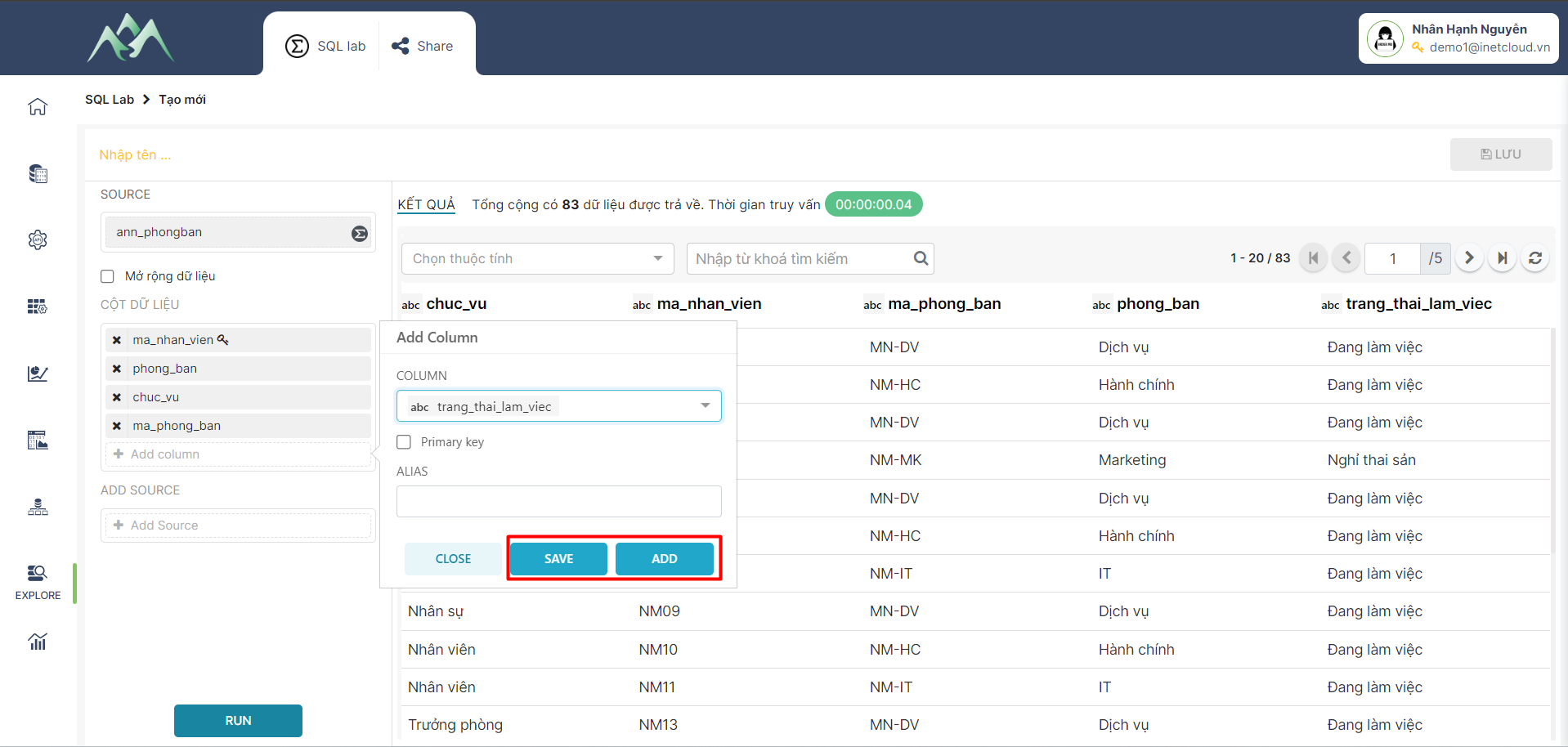
<span style="mso-fareast-font-family: 'Times New Roman';"><span style="mso-list: Ignore;">-<span style="font: 7.0pt 'Times New Roman';"> </span></span></span>Bước 4: Ấn ADD/SAVE để lưu cột dữ liệu vào tập dữ liệu hiện tại. Trong đó: ADD sẽ lưu và hiển thị lại giao diện để thực hiện thêm cột dữ liệu khác, SAVE sẽ lưu cột dữ liệu thêm mới và đóng bảng Add column.

<table border="1" id="bkmrk--3" style="border-collapse: collapse; width: 100%;"><colgroup><col style="width: 99.881%;"></col></colgroup><tbody><tr><td>[![image.png](https://book.inetcloud.vn/uploads/images/gallery/2024-07/scaled-1680-/qnZimage.png)](https://book.inetcloud.vn/uploads/images/gallery/2024-07/qnZimage.png)

</td></tr></tbody></table>

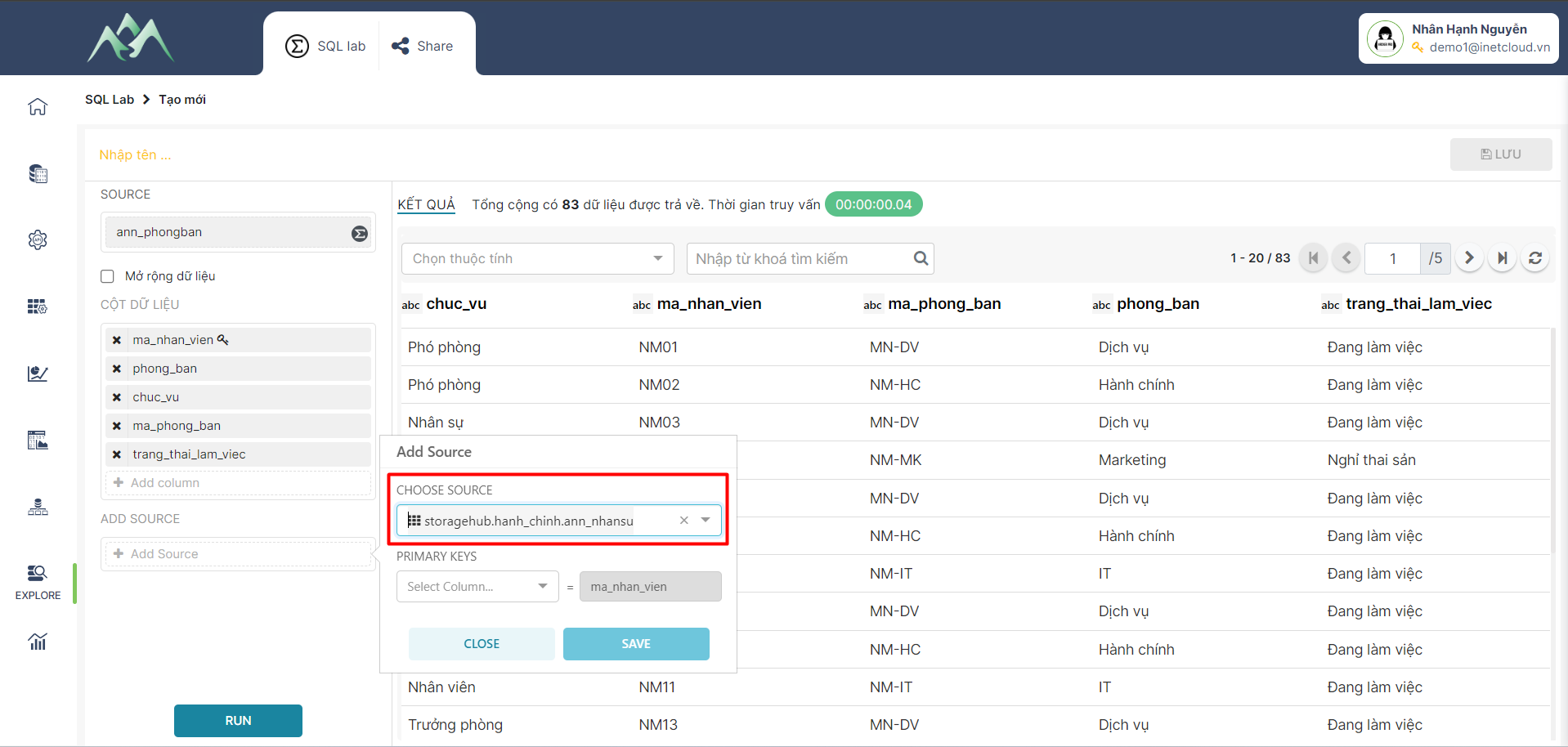
<span style="mso-fareast-font-family: 'Times New Roman';"><span style="mso-list: Ignore;">-<span style="font: 7.0pt 'Times New Roman';"> </span></span></span>Bước 5: Chọn tập dữ liệu cần tổng hợp (Bảng 2) với tập dữ liệu đầu vào (Bảng 1).

<table border="1" id="bkmrk--5" style="border-collapse: collapse; width: 100%;"><colgroup><col style="width: 99.881%;"></col></colgroup><tbody><tr><td>[![image.png](https://book.inetcloud.vn/uploads/images/gallery/2024-07/scaled-1680-/skqimage.png)](https://book.inetcloud.vn/uploads/images/gallery/2024-07/skqimage.png)

</td></tr></tbody></table>

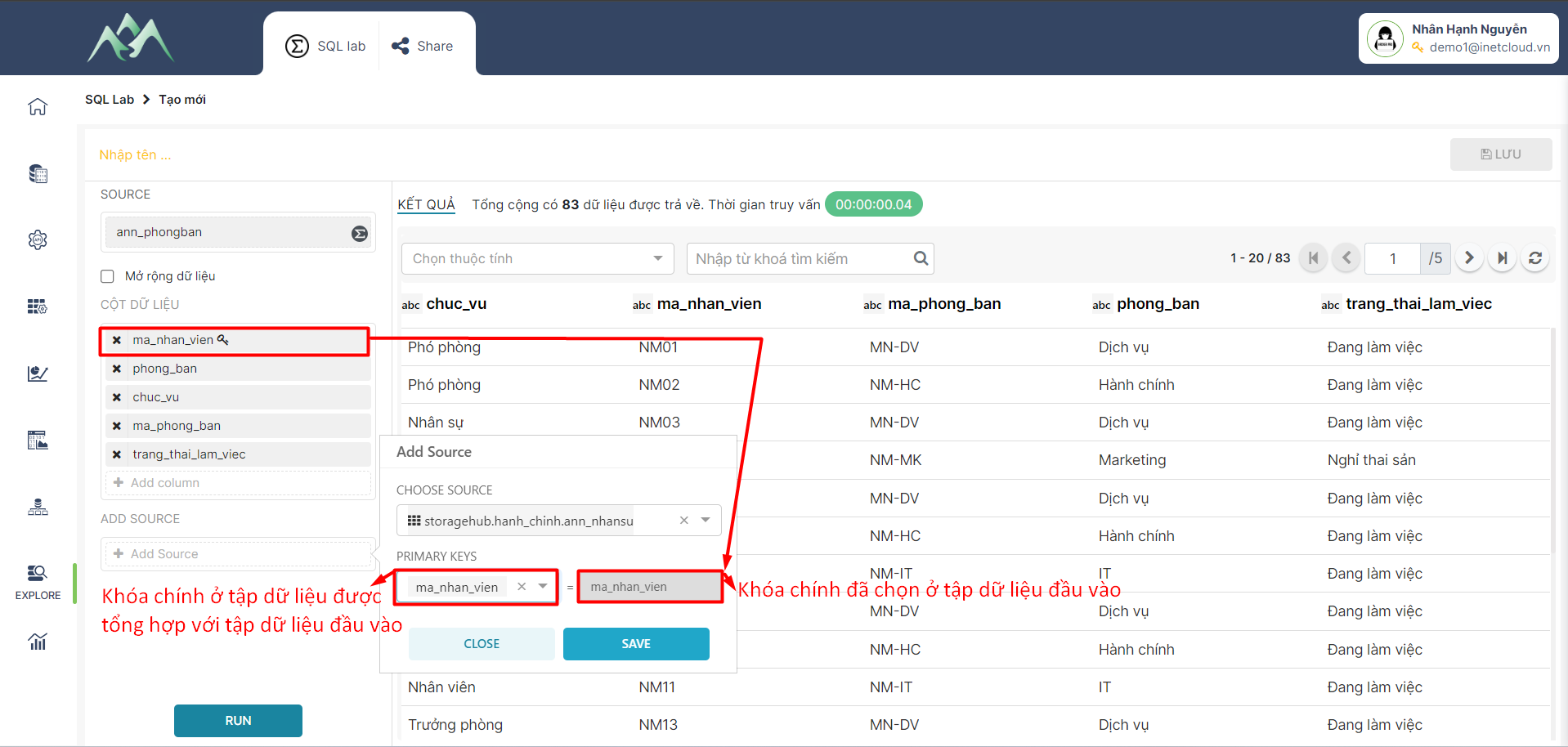
<span style="mso-fareast-font-family: 'Times New Roman';"><span style="mso-list: Ignore;">-<span style="font: 7.0pt 'Times New Roman';"> </span></span></span>Bước 6:<span style="mso-spacerun: yes;"> </span>Chọn trường thuộc tính của tập dữ liệu cần tổng hợp để map với tập dữ liệu đầu vào, sau đó lưu thông tin khóa chính được map.

<table border="1" id="bkmrk--6" style="border-collapse: collapse; width: 100%;"><colgroup><col style="width: 99.881%;"></col></colgroup><tbody><tr><td>[![image.png](https://book.inetcloud.vn/uploads/images/gallery/2024-07/scaled-1680-/cvRimage.png)](https://book.inetcloud.vn/uploads/images/gallery/2024-07/cvRimage.png)

</td></tr></tbody></table>

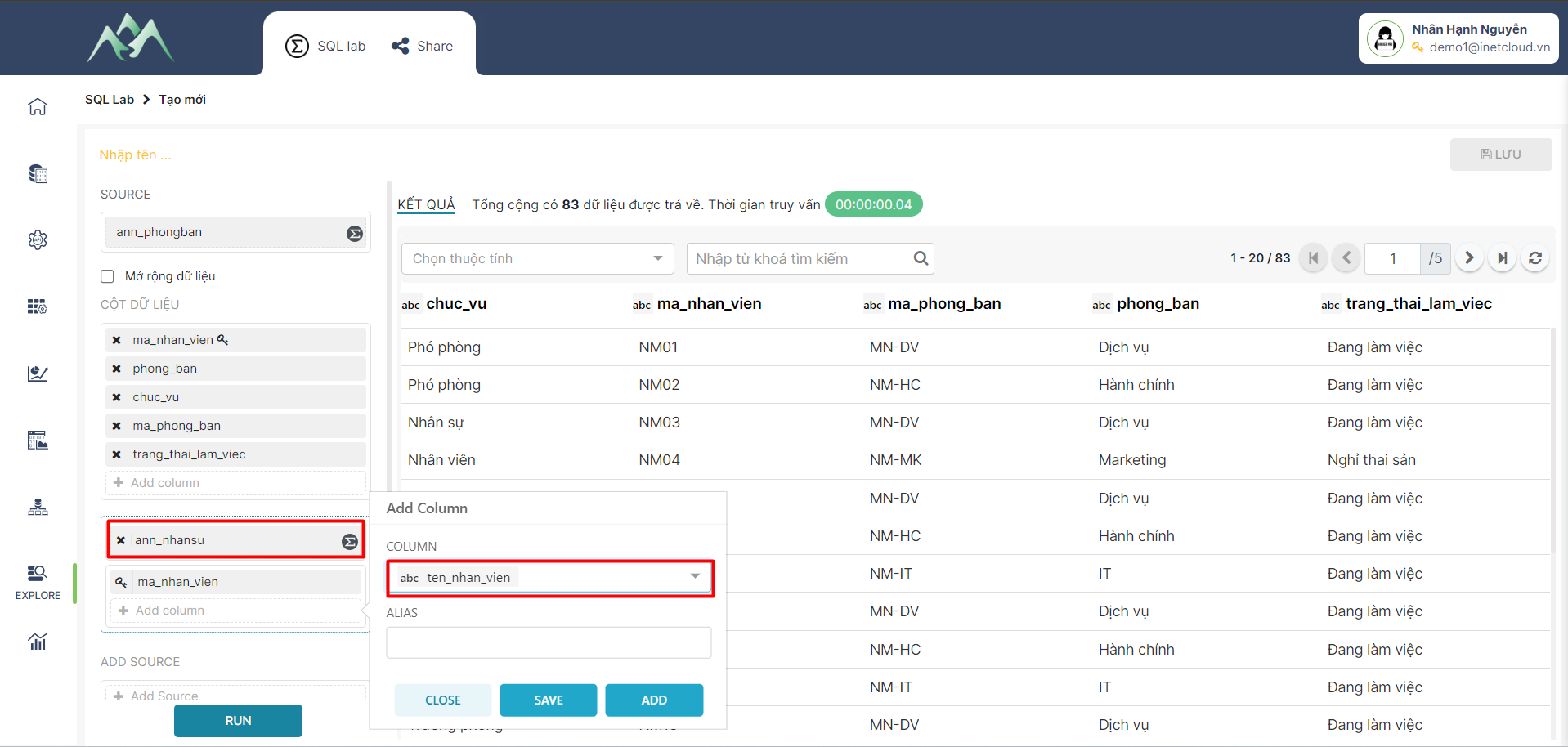
<span style="mso-fareast-font-family: 'Times New Roman';"><span style="mso-list: Ignore;">-<span style="font: 7.0pt 'Times New Roman';"> </span></span></span>Bước 7: ADD thêm cột trường thuộc tính dữ liệu cho tập dữ liệu đầu vào (Bảng 1).

<table border="1" id="bkmrk--7" style="border-collapse: collapse; width: 100%;"><colgroup><col style="width: 99.881%;"></col></colgroup><tbody><tr><td>[![image.png](https://book.inetcloud.vn/uploads/images/gallery/2024-07/scaled-1680-/7iTimage.png)](https://book.inetcloud.vn/uploads/images/gallery/2024-07/7iTimage.png)

</td></tr></tbody></table>

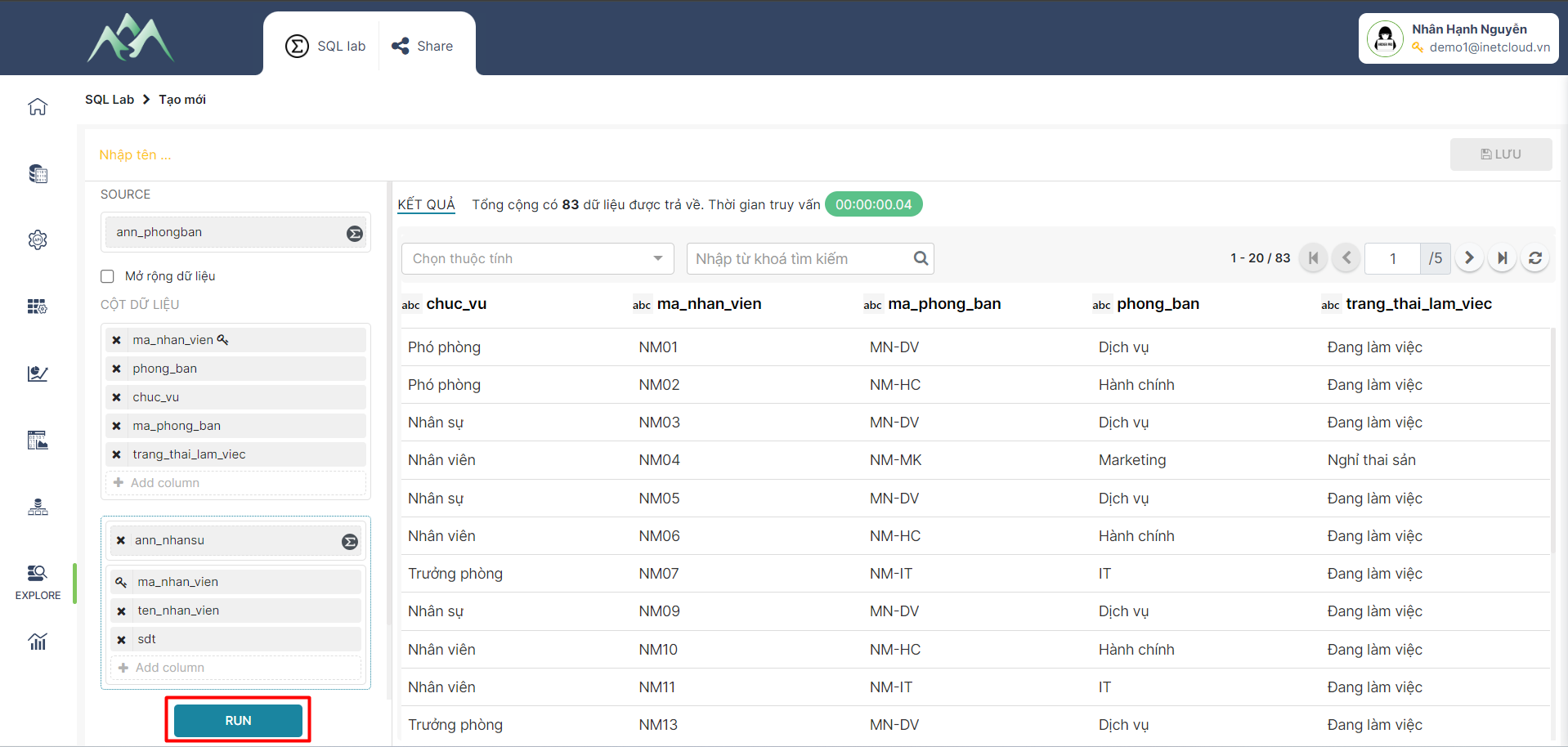
<span style="mso-fareast-font-family: 'Times New Roman';"><span style="mso-list: Ignore;">-<span style="font: 7.0pt 'Times New Roman';"> </span></span></span>Bước 8: Thực hiện kết hợp các bảng theo cột khóa. Trên hệ thống ấn “RUN” để xem dữ liệu được tổng hợp (Bảng 3 = Dữ liệu bảng 1 + bảng 2).

<table border="1" id="bkmrk--8" style="border-collapse: collapse; width: 100%;"><colgroup><col style="width: 99.881%;"></col></colgroup><tbody><tr><td>[![image.png](https://book.inetcloud.vn/uploads/images/gallery/2024-07/scaled-1680-/Nxgimage.png)](https://book.inetcloud.vn/uploads/images/gallery/2024-07/Nxgimage.png)

</td></tr></tbody></table>

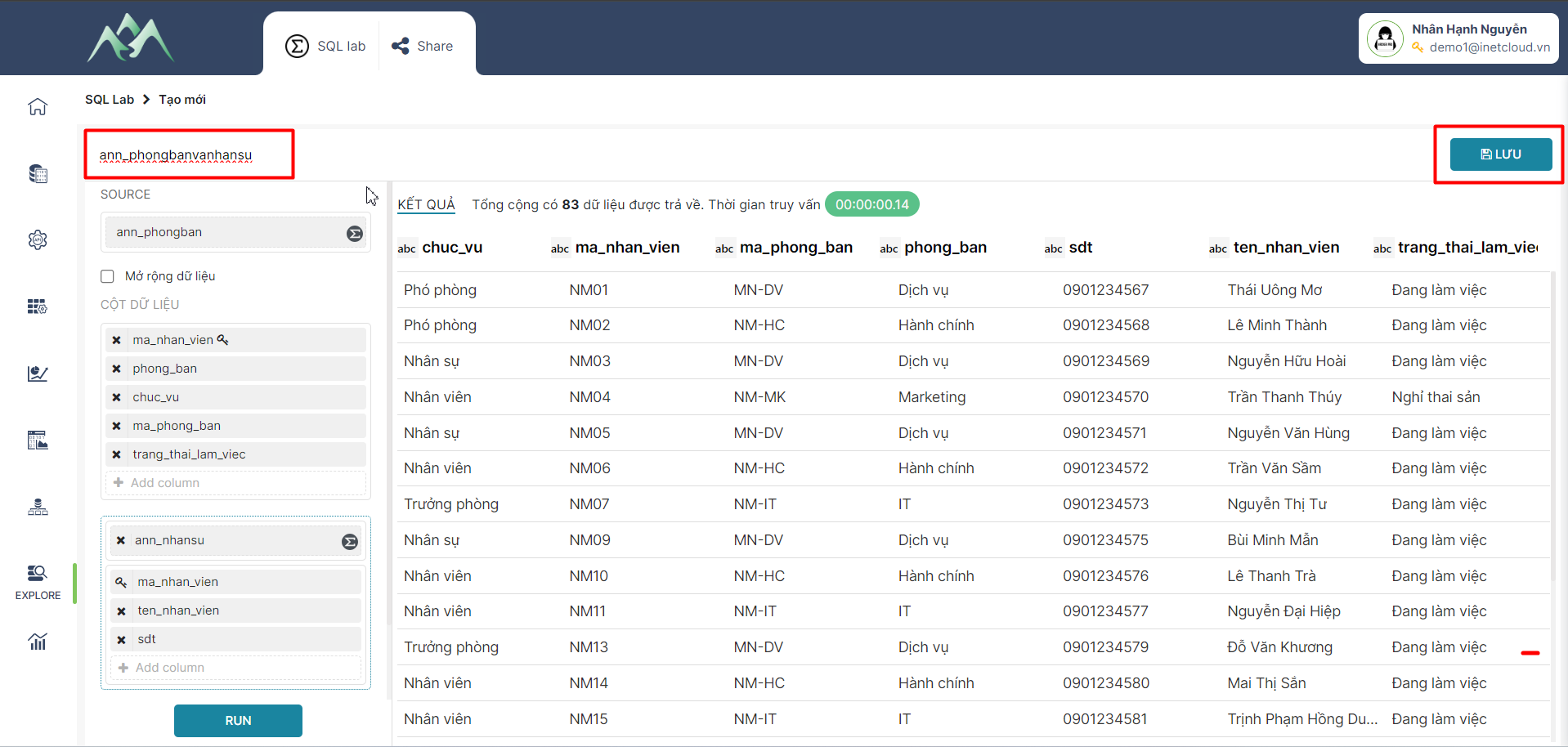
<span style="mso-fareast-font-family: 'Times New Roman';"><span style="mso-list: Ignore;">-<span style="font: 7.0pt 'Times New Roman';"> </span></span></span>Bước 9: Nhập tên cho tập dữ liệu mới được tổng hợp, chọn Lưu thông tin tập dữ liệu được tổng hợp bằng công cụ XTABLE.

<table border="1" id="bkmrk--9" style="border-collapse: collapse; width: 100%;"><colgroup><col style="width: 99.881%;"></col></colgroup><tbody><tr><td>[![image.png](https://book.inetcloud.vn/uploads/images/gallery/2024-07/scaled-1680-/lMXimage.png)](https://book.inetcloud.vn/uploads/images/gallery/2024-07/lMXimage.png)

</td></tr></tbody></table>

***Lưu ý:***

*Chức năng Check/ Không check vào ô "Mở rộng dữ liệu" tương đương với 2 trường hợp tổng hợp dữ liệu như sau:*

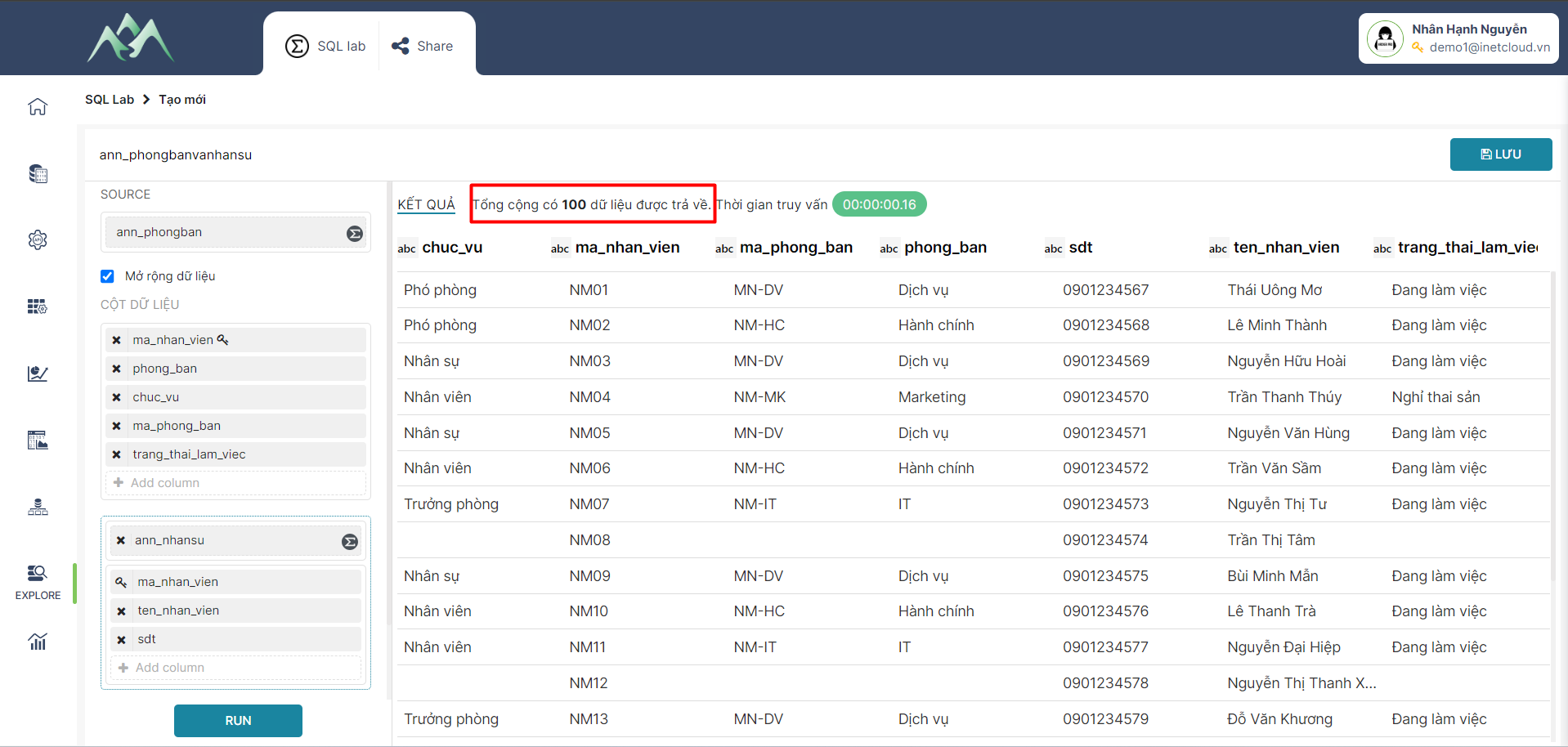
- *Trường hợp 1: Check vào ô "Mở rộng dữ liệu" : Kết quả được tổng hợp từ hai hay nhiều tập dữ liệu theo khóa chính và lấy tất cả các dòng dữ liệu ở các tập dữ liệu.*

<table border="1" id="bkmrk--11" style="border-collapse: collapse; width: 100%;"><colgroup><col style="width: 99.881%;"></col></colgroup><tbody><tr><td>[![image.png](https://book.inetcloud.vn/uploads/images/gallery/2024-07/scaled-1680-/vIeimage.png)](https://book.inetcloud.vn/uploads/images/gallery/2024-07/vIeimage.png)

</td></tr></tbody></table>

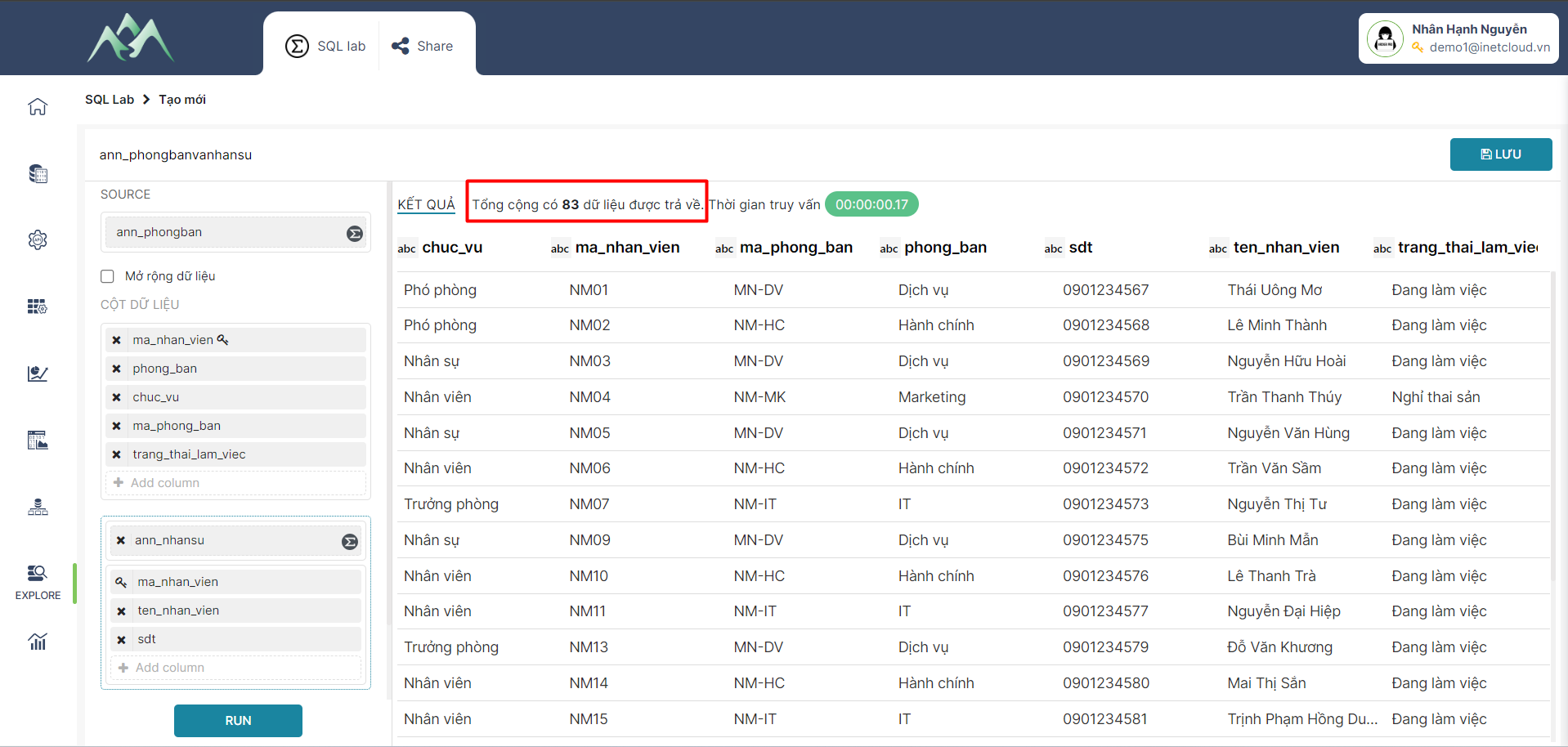
- *Trường hợp 2: Không check vào ô "Mở rộng dữ liệu" : Kết quả được tổng hợp từ hai hay nhiều tập dữ liệu theo khóa chính và chỉ lấy các dòng dữ liệu theo cột khóa chính ở tập dữ liệu đầu vào*

<table border="1" id="bkmrk--12" style="border-collapse: collapse; width: 100%;"><colgroup><col style="width: 99.881%;"></col></colgroup><tbody><tr><td>[![image.png](https://book.inetcloud.vn/uploads/images/gallery/2024-07/scaled-1680-/TEximage.png)](https://book.inetcloud.vn/uploads/images/gallery/2024-07/TEximage.png)

</td></tr></tbody></table>

# 2.	CLOUD QUERY

CLOUD QUERY là một công cụ mạnh mẽ để truy vấn và tích hợp dữ liệu từ nhiều nguồn khác nhau. Với các biểu thức, cú pháp truy vấn và các hàm chức năng để hỗ trợ người dùng hệ thống dễ dàng truy vấn và tích hợp dữ liệu từ các nguồn về một tập dữ liệu duy nhất, giúp tạo ra những cái nhìn toàn diện và tổng hợp về dữ liệu.

# 2.1. Nối các tập dữ liệu

<span style="mso-fareast-font-family: 'Times New Roman';"><span style="mso-list: Ignore;">-<span style="font: 7.0pt 'Times New Roman';"> </span></span></span>Bước 1: Xác định tập dữ liệu đầu vào. Trên hệ thống chọn module Explore, chọn tập dữ liệu cần tổng hợp và chọn CLOUD QUERY.

<span style="mso-no-proof: yes;">![](https://book.inetcloud.vn/uploads/images/gallery/2024-07/embedded-image-znnxm7dg.png)  
</span>

<span style="mso-fareast-font-family: 'Times New Roman';"><span style="mso-list: Ignore;">-<span style="font: 7.0pt 'Times New Roman';"> </span></span></span>Bước 2: Xác định tập dữ liệu cần tổng hợp với tập dữ liệu đầu vào. Cấu hình điều kiện nối các tập dữ liệu trên hệ thống.

<span style="mso-no-proof: yes;">![](https://book.inetcloud.vn/uploads/images/gallery/2024-07/embedded-image-lrlltvhr.png)  
</span>

Trong đó:

<span style="font-family: 'Courier New'; mso-fareast-font-family: 'Courier New';"><span style="mso-list: Ignore;">o<span style="font: 7.0pt 'Times New Roman';"> </span></span></span>LEFT SOURCE: Tập dữ liệu ban đầu (bảng 1) cần thực hiện kết nối với tập dữ liệu khác.

<span style="font-family: 'Courier New'; mso-fareast-font-family: 'Courier New';"><span style="mso-list: Ignore;">o<span style="font: 7.0pt 'Times New Roman';"> </span></span></span>ALIAS: Đặt tên liên kết cho các trường thuộc tính của tập dữ liệu ban đầu. Mục tiêu để sau khi nối các tập dữ liệu lại với nhau sẽ dễ phân biệt trường thuộc tính thuộc tập dữ liệu nào.

<span style="mso-no-proof: yes;">![](https://book.inetcloud.vn/uploads/images/gallery/2024-07/embedded-image-2ssh1jzl.png)  
</span>

<span style="font-family: 'Courier New'; mso-fareast-font-family: 'Courier New'; mso-no-proof: yes;"><span style="mso-list: Ignore;">o<span style="font: 7.0pt 'Times New Roman';"> </span></span></span>JOIN TYPE: Chọn loại kế<span style="color: rgb(0, 0, 0);">t nối, chi tiết các loại kết nối có thể xem thêm tại "Tài liệu sử dụng Cloud query, đường dẫn [https://book.inetcloud.vn/books/tai-lieu-su-dung-cloud-query ](https://book.inetcloud.vn/books/tai-lieu-su-dung-cloud-query/page/23-joins)"</span>

<span style="mso-no-proof: yes;">![](https://book.inetcloud.vn/uploads/images/gallery/2024-07/embedded-image-bllx5up0.png)  
</span>

<span style="font-family: 'Courier New'; mso-fareast-font-family: 'Courier New';"><span style="mso-list: Ignore;">o<span style="font: 7.0pt 'Times New Roman';"> </span></span></span>RIGHT SOURCE: Chọn tập dữ liệu (bảng 2) nối với tập dữ liệu ban đầu (bảng 1).

<span style="font-family: 'Courier New'; mso-fareast-font-family: 'Courier New';"><span style="mso-list: Ignore;">o<span style="font: 7.0pt 'Times New Roman';"> </span></span></span>CONDITIONS: Chọn trường dữ liệu là điều kiện để nối các tập dữ liệu. Cột điều kiện hay còn gọi là khóa chính để tổng hợp các giá trị tương đồng giữa các tập dữ liệu.

<span style="mso-no-proof: yes;">![](https://book.inetcloud.vn/uploads/images/gallery/2024-07/embedded-image-i6n73umk.png)  
</span>

<span style="mso-fareast-font-family: 'Times New Roman';"><span style="mso-list: Ignore;">-<span style="font: 7.0pt 'Times New Roman';"> </span></span></span>Bước 3: Thực hiện kết hợp các bảng theo cột khóa . Trên hệ thống ấn TEST để xem kết quả dữ liệu được nối giữa các tập dữ liệu.

<span style="mso-no-proof: yes;">![](https://book.inetcloud.vn/uploads/images/gallery/2024-07/embedded-image-ba3rqrji.png)  
</span>

<span style="mso-fareast-font-family: 'Times New Roman';"><span style="mso-list: Ignore;">-<span style="font: 7.0pt 'Times New Roman';"> </span></span></span>Bước 4: Nhập tên cho tập dữ liệu mới được tổng hợp, chọn Lưu thông tin tập dữ liệu được tổng hợp bằng công cụ CLOUD QUERY.

<span style="mso-no-proof: yes;">![](https://book.inetcloud.vn/uploads/images/gallery/2024-07/embedded-image-lvd602c2.png)  
</span>

***Lưu ý****: Để xử lý các cột/trường dữ liệu xem hướng dẫn chi tiết tại mục 2.2*

# 2.2. Xử lý các cột/trường dữ liệu bằng các hàm, thuật toán (Simple column)

<span style="mso-fareast-font-family: 'Times New Roman';"><span style="mso-list: Ignore;">-<span style="font: 7.0pt 'Times New Roman';"> </span></span></span>Bước 1: Chọn các cột/trường dữ liệu cần cho tập dữ liệu

<span style="mso-no-proof: yes;">![](https://book.inetcloud.vn/uploads/images/gallery/2024-07/embedded-image-0s2ywpyi.png)  
</span>

<span style="mso-fareast-font-family: 'Times New Roman';"><span style="mso-list: Ignore;">-<span style="font: 7.0pt 'Times New Roman';"> </span></span></span>Bước 2: Chọn hàm/thuật toán xử lý cột/trường dữ liệu được chọn

<span style="mso-no-proof: yes;">![](https://book.inetcloud.vn/uploads/images/gallery/2024-07/embedded-image-x2wteq2u.png)  
</span>

***Lưu ý****: <span style="color: rgb(0, 0, 0);">Xem tài liệu theo đường dẫn [https://book.inetcloud.vn/books/tai-lieu-su-dung-cloud-query/chapter/chuong-4-cac-ham-chuc-nang](https://book.inetcloud.vn/books/tai-lieu-su-dung-cloud-query/chapter/chuong-4-cac-ham-chuc-nang) này để chi tiết hơn về ý nghĩa và chức năng của các hàm/thuật toán cần sử dụng.</span>*

<span style="mso-fareast-font-family: 'Times New Roman';"><span style="mso-list: Ignore;">-<span style="font: 7.0pt 'Times New Roman';"> </span></span></span>Bước 3: Đặt tên mới cho cột/trường dữ liệu. Hệ thống sẽ mặc định hiển thị tên cũ của cột/trường dữ liệu nếu không cập nhật tên mới.

<span style="mso-no-proof: yes;">![](https://book.inetcloud.vn/uploads/images/gallery/2024-07/embedded-image-mdqm6t9z.png)  
</span>

<span style="mso-fareast-font-family: 'Times New Roman';"><span style="mso-list: Ignore;">-<span style="font: 7.0pt 'Times New Roman';"> </span></span></span>Bước 4: Ấn ADD/SAVE để lưu cột dữ liệu vào tập dữ liệu hiện tại. Trong đó: ADD sẽ lưu và hiển thị lại giao diện để thực hiện thêm cột dữ liệu khác, SAVE sẽ lưu cột dữ liệu thêm mới và đóng bảng Add column.

<span style="mso-no-proof: yes;">![](https://book.inetcloud.vn/uploads/images/gallery/2024-07/embedded-image-nevuynsg.png)  
</span>

<span style="mso-fareast-font-family: 'Times New Roman';"><span style="mso-list: Ignore;">-<span style="font: 7.0pt 'Times New Roman';"> </span></span></span>Bước 5: Ấn TEST để xem kết quả dữ liệu

<span style="mso-no-proof: yes;">![](https://book.inetcloud.vn/uploads/images/gallery/2024-07/embedded-image-g60os0mc.png)  
</span>

# 2.3. Thêm cột/trường dữ liệu mới dựa trên điều kiện (Custom column - Case)

<span style="mso-fareast-font-family: 'Times New Roman';"><span style="mso-list: Ignore;">-<span style="font: 7.0pt 'Times New Roman';"> </span></span></span>Bước 1: Chọn biểu thức CASE thực hiện thêm mới cột/trường dữ liệu.

<span style="mso-no-proof: yes;">![](https://book.inetcloud.vn/uploads/images/gallery/2024-07/embedded-image-sxkvarsf.png)  
</span>

<span style="mso-fareast-font-family: 'Times New Roman';"><span style="mso-list: Ignore;">-<span style="font: 7.0pt 'Times New Roman';"> </span></span></span>Bước 2: Chọn kiểu dữ liệu cho cột/trường dữ liệu mới.

<span style="mso-no-proof: yes;">![](https://book.inetcloud.vn/uploads/images/gallery/2024-07/embedded-image-28ebtz4p.png)  
</span>

<span style="mso-fareast-font-family: 'Times New Roman';"><span style="mso-list: Ignore;">-<span style="font: 7.0pt 'Times New Roman';"> </span></span></span>Bước 3: Cấu hình điều kiện để lấy dữ liệu cho cột/trường dữ liệu mới.

<span style="mso-no-proof: yes;">![](https://book.inetcloud.vn/uploads/images/gallery/2024-07/embedded-image-1k29tlpl.png)  
</span>

Trong đó:

<span style="font-family: 'Courier New'; mso-fareast-font-family: 'Courier New';"><span style="mso-list: Ignore;">o<span style="font: 7.0pt 'Times New Roman';"> </span></span></span>Bảng Add Filter (3): Cấu hình điều kiện lọc cho dữ liệu.

<span style="mso-no-proof: yes;">![](https://book.inetcloud.vn/uploads/images/gallery/2024-07/embedded-image-j7j61o3t.png)  
</span>

<span style="font-family: 'Courier New'; mso-fareast-font-family: 'Courier New';"><span style="mso-list: Ignore;">o<span style="font: 7.0pt 'Times New Roman';"> </span></span></span>Bảng Condition (2): Cấu hình giá trị tương ứng cho điều kiện lọc dữ liệu.

<span style="mso-no-proof: yes;">![](https://book.inetcloud.vn/uploads/images/gallery/2024-07/embedded-image-elupwl3c.png)  
</span>

<span style="font-family: 'Courier New'; mso-fareast-font-family: 'Courier New';"><span style="mso-list: Ignore;">o<span style="font: 7.0pt 'Times New Roman';"> </span></span></span>Bảng CONDITIONS (1): Các điều kiện của cột/trường dữ liệu được tạo mới.

<span style="mso-no-proof: yes;">![](https://book.inetcloud.vn/uploads/images/gallery/2024-07/embedded-image-gv25iv01.png)  
</span>

<span style="mso-fareast-font-family: 'Times New Roman';"><span style="mso-list: Ignore;">-<span style="font: 7.0pt 'Times New Roman';"> </span></span></span>Bước 4: Ấn ADD/SAVE để lưu cột dữ liệu vào tập dữ liệu hiện tại. Trong đó: ADD sẽ lưu và hiển thị lại giao diện để thực hiện thêm cột dữ liệu khác, SAVE sẽ lưu cột dữ liệu thêm mới và đóng bảng Add column.

<span style="mso-no-proof: yes;">![](https://book.inetcloud.vn/uploads/images/gallery/2024-07/embedded-image-wr1wymj4.png)  
</span>

<span style="mso-fareast-font-family: 'Times New Roman';"><span style="mso-list: Ignore;">-<span style="font: 7.0pt 'Times New Roman';"> </span></span></span>Bước 5: Ấn TEST để xem kết quả dữ liệu

<span style="mso-no-proof: yes;"></span>

<span style="mso-no-proof: yes;">![](https://book.inetcloud.vn/uploads/images/gallery/2024-07/embedded-image-3mcxjgpz.png)</span>

***<span style="mso-no-proof: yes;">Lưu ý: </span>****<span style="mso-no-proof: yes;">Để hiểu rõ hơn về các biểu thức có thể tham khảo thêm ở tài liệu này</span><span style="mso-no-proof: yes;"><span style="color: rgb(0, 0, 0);"> [https://book.inetcloud.vn/books/tai-lieu-su-dung-cloud-query/chapter/chuong-3-bieu-thuc](https://book.inetcloud.vn/books/tai-lieu-su-dung-cloud-query/chapter/chuong-3-bieu-thuc)</span></span>*

# 2.4. Thêm cột/trường dữ liệu mới với một giá trị cụ thể (Custom column - CONSTANT)

<span style="mso-fareast-font-family: 'Times New Roman';"><span style="mso-list: Ignore;">-<span style="font: 7.0pt 'Times New Roman';"> </span></span></span>Bước 1: Chọn biểu thức CONSTANT thực hiện thêm mới cột/trường dữ liệu.

<span style="mso-no-proof: yes;">![](https://book.inetcloud.vn/uploads/images/gallery/2024-07/embedded-image-0kveudam.png)  
</span>

<span style="mso-fareast-font-family: 'Times New Roman';"><span style="mso-list: Ignore;">-<span style="font: 7.0pt 'Times New Roman';"> </span></span></span>Bước 2: Chọn kiểu dữ liệu cho cột/trường dữ liệu mới.

<span style="mso-no-proof: yes;">![](https://book.inetcloud.vn/uploads/images/gallery/2024-07/embedded-image-8sbtlzaa.png)  
</span>

<span style="mso-fareast-font-family: 'Times New Roman';"><span style="mso-list: Ignore;">-<span style="font: 7.0pt 'Times New Roman';"> </span></span></span>Bước 3: Nhập giá trị cho cột/trường dữ liệu thêm mới.

<span style="mso-no-proof: yes;">![](https://book.inetcloud.vn/uploads/images/gallery/2024-07/embedded-image-2jbysfwh.png)  
</span>

<span style="mso-fareast-font-family: 'Times New Roman';"><span style="mso-list: Ignore;">-<span style="font: 7.0pt 'Times New Roman';"> </span></span></span>Bước 4: Nhập tên cho cột/trường dữ liệu thêm mới

<span style="mso-no-proof: yes;">![](https://book.inetcloud.vn/uploads/images/gallery/2024-07/embedded-image-fglftgxn.png)  
</span>

<span style="mso-fareast-font-family: 'Times New Roman';"><span style="mso-list: Ignore;">-<span style="font: 7.0pt 'Times New Roman';"> </span></span></span>Bước 5: Ấn ADD/SAVE để lưu cột dữ liệu vào tập dữ liệu hiện tại. Trong đó: ADD sẽ lưu và hiển thị lại giao diện để thực hiện thêm cột dữ liệu khác, SAVE sẽ lưu cột dữ liệu thêm mới và đóng bảng Add column.

<span style="mso-no-proof: yes;">![](https://book.inetcloud.vn/uploads/images/gallery/2024-07/embedded-image-ztv29ofq.png)  
</span>

<span style="mso-fareast-font-family: 'Times New Roman';"><span style="mso-list: Ignore;">-<span style="font: 7.0pt 'Times New Roman';"> </span></span></span>Bước 6: Ấn TEST để xem kết quả dữ liệu.

<span style="mso-no-proof: yes;">![](https://book.inetcloud.vn/uploads/images/gallery/2024-07/embedded-image-kcywfkkl.png)  
</span>

# 2.5. Thêm cột/trường dữ liệu mới với một giá trị cụ thể (Custom column -  FUNCTION)

<span style="mso-fareast-font-family: 'Times New Roman';"><span style="mso-list: Ignore;">-<span style="font: 7.0pt 'Times New Roman';"> </span></span></span>Bước 1: Chọn biểu thức FUNCTION thực hiện thêm mới cột/trường dữ liệu.

<span style="mso-no-proof: yes;">![](https://book.inetcloud.vn/uploads/images/gallery/2024-07/embedded-image-uynw2rlf.png)  
</span>

<span style="mso-fareast-font-family: 'Times New Roman';"><span style="mso-list: Ignore;">-<span style="font: 7.0pt 'Times New Roman';"> </span></span></span>Bước 2: Chọn kiểu dữ liệu cho cột/trường dữ liệu mới.

<span style="mso-no-proof: yes;">![](https://book.inetcloud.vn/uploads/images/gallery/2024-07/embedded-image-u7f3sbts.png)  
</span>

<span style="mso-fareast-font-family: 'Times New Roman';"><span style="mso-list: Ignore;">-<span style="font: 7.0pt 'Times New Roman';"> </span></span></span>Bước 3: Chọn hàm/thuật toán để lấy dữ liệu cho cột/trường dữ liệu mới.

<span style="mso-no-proof: yes;">![](https://book.inetcloud.vn/uploads/images/gallery/2024-07/embedded-image-vy8cfpik.png)  
</span>

Trong đó:

<span style="font-family: 'Courier New'; mso-fareast-font-family: 'Courier New';"><span style="mso-list: Ignore;">o<span style="font: 7.0pt 'Times New Roman';"> </span></span></span>Hàm now(): Dữ liệu được trả về ngày và giờ hiện tại của hệ thống tại thời điểm thực hiện.

<span style="mso-no-proof: yes;">![](https://book.inetcloud.vn/uploads/images/gallery/2024-07/embedded-image-nqmdnw5g.png)  
</span>

<span style="font-family: 'Courier New'; mso-fareast-font-family: 'Courier New';"><span style="mso-list: Ignore;">o<span style="font: 7.0pt 'Times New Roman';"> </span></span></span>Hàm datetime(): Dữ liệu được trả về lấy ngày và giờ hiện tại hoặc để định dạng lại một giá trị ngày giờ.

<span style="mso-no-proof: yes;">![](https://book.inetcloud.vn/uploads/images/gallery/2024-07/embedded-image-lcf6yy7h.png)  
</span>

<span style="font-family: 'Courier New'; mso-fareast-font-family: 'Courier New';"><span style="mso-list: Ignore;">o<span style="font: 7.0pt 'Times New Roman';"> </span></span></span>Hàm startdate(): Sử dụng các hàm tích hợp sẵn trong các hệ CSDL để lấy ngày bắt đầu của các khoảng thời gian khác nhau.

<span style="mso-no-proof: yes;">![](https://book.inetcloud.vn/uploads/images/gallery/2024-07/embedded-image-rmmzrqqg.png)  
</span>

<span style="font-family: 'Courier New'; mso-fareast-font-family: 'Courier New';"><span style="mso-list: Ignore;">o<span style="font: 7.0pt 'Times New Roman';"> </span></span></span>Hàm truncdate(): Sử dụng các hàm có sẵn trong từng hệ quản trị CSDL để trích xuất ngày đầu tiên của tháng hoặc năm từ một ngày nhất định.

<span style="mso-no-proof: yes;">![](https://book.inetcloud.vn/uploads/images/gallery/2024-07/embedded-image-lx0vo2dv.png)  
</span>

<span style="color: rgb(0, 0, 0);">Chi tiết các hàm có thể xem ở tài liệu theo đường dẫn: <span style="color: rgb(35, 111, 161);">[https://book.inetcloud.vn/books/tai-lieu-su-dung-cloud-query/chapter/chuong-3-bieu-thuc](https://book.inetcloud.vn/books/tai-lieu-su-dung-cloud-query/chapter/chuong-3-bieu-thuc)</span></span>

<span style="mso-fareast-font-family: 'Times New Roman';"><span style="mso-list: Ignore;">-<span style="font: 7.0pt 'Times New Roman';"> </span></span></span>Bước 4: Ấn ADD/SAVE để lưu cột dữ liệu vào tập dữ liệu hiện tại. Trong đó: ADD sẽ lưu và hiển thị lại giao diện để thực hiện thêm cột dữ liệu khác, SAVE sẽ lưu cột dữ liệu thêm mới và đóng bảng Add column.

<span style="mso-no-proof: yes;">![](https://book.inetcloud.vn/uploads/images/gallery/2024-07/embedded-image-hq2yt7it.png)  
</span>

<span style="mso-fareast-font-family: 'Times New Roman';"><span style="mso-list: Ignore;">-<span style="font: 7.0pt 'Times New Roman';"> </span></span></span>Bước 5: Ấn TEST để xem kết quả dữ liệu

<span style="mso-no-proof: yes;">![](https://book.inetcloud.vn/uploads/images/gallery/2024-07/embedded-image-ikdzmuud.png)  
</span>

<span style="mso-no-proof: yes;">  
</span>

<span style="mso-no-proof: yes;">  
</span>

# 2.6. Nhóm (GROUP) dữ liệu theo cột/trường thuộc tính

Mục tiêu của việc nhóm (GROUP) dữ liệu để nhóm các hàng có cùng một hoặc nhiều giá trị chung vào dùng một nhóm. Hàm GROUP này thường được sử dụng cùng với các hàm tổng hợp như COUNT, SUM, AVG, MAX, MIN. Thực hiện trên hệ thống theo các bước hướng dẫn sau:

<span style="mso-fareast-font-family: 'Times New Roman';"><span style="mso-list: Ignore;">-<span style="font: 7.0pt 'Times New Roman';"> </span></span></span>Bước 1: Tại tập dữ liệu cần thực hiện nhóm dữ liệu, chọn các cột/trường thuộc tính

<span style="mso-no-proof: yes;">![](https://book.inetcloud.vn/uploads/images/gallery/2024-07/embedded-image-hqke5fa1.png)  
</span>

<span style="mso-fareast-font-family: 'Times New Roman';"><span style="mso-list: Ignore;">-<span style="font: 7.0pt 'Times New Roman';"> </span></span></span>Bước 2: Ấn TEST để xem kết quả nhóm dữ liệu

<span style="font-size: 13.0pt; mso-bidi-font-size: 11.0pt; line-height: 115%; font-family: 'Times New Roman',serif; mso-fareast-font-family: Calibri; mso-ansi-language: EN-US; mso-fareast-language: EN-US; mso-bidi-language: AR-SA; mso-no-proof: yes;">![](https://book.inetcloud.vn/uploads/images/gallery/2024-07/embedded-image-jn58ylmx.png)  
</span>

***Lưu ý:*** *Để hiểu rõ hơn về các biểu thức có thể tham khảo thêm ở tài liệu này [https://book.inetcloud.vn/books/tai-lieu-su-dung-cloud-query/page/25-group-by](https://book.inetcloud.vn/books/tai-lieu-su-dung-cloud-query/page/25-group-by)*

# 2.7. Cấu hình lọc (FILTER) dữ liệu theo điều kiện

<span style="mso-fareast-font-family: 'Times New Roman';"><span style="mso-list: Ignore;">-<span style="font: 7.0pt 'Times New Roman';"> </span></span></span>Bước 1: Tại tập dữ liệu chọn cột/trường dữ liệu làm điều kiện lọc

<span style="mso-no-proof: yes;">![](https://book.inetcloud.vn/uploads/images/gallery/2024-07/embedded-image-ldx1irwd.png)  
</span>

<span style="mso-fareast-font-family: 'Times New Roman';"><span style="mso-list: Ignore;">-<span style="font: 7.0pt 'Times New Roman';"> </span></span></span>Bước 2: Chọn các toán tử để cấu hình cho điều kiện lọc

<span style="mso-no-proof: yes;">![](https://book.inetcloud.vn/uploads/images/gallery/2024-07/embedded-image-sftfjyq2.png)  
</span>

<span style="mso-fareast-font-family: 'Times New Roman';"><span style="mso-list: Ignore;">-<span style="font: 7.0pt 'Times New Roman';"> </span></span></span>Bước 3: Nhập giá trị cần lọc theo điều kiện

<span style="mso-no-proof: yes;">![](https://book.inetcloud.vn/uploads/images/gallery/2024-07/embedded-image-djtzq0mc.png)  
</span>

<span style="mso-fareast-font-family: 'Times New Roman';"><span style="mso-list: Ignore;">-<span style="font: 7.0pt 'Times New Roman';"> </span></span></span>Bước 4: Ấn ADD/SAVE để lưu cột dữ liệu vào tập dữ liệu hiện tại. Trong đó: ADD sẽ lưu và hiển thị lại giao diện để thực hiện thêm cột dữ liệu khác, SAVE sẽ lưu cột dữ liệu thêm mới và đóng bảng Add Filter.

<span style="mso-no-proof: yes;">![](https://book.inetcloud.vn/uploads/images/gallery/2024-07/embedded-image-bfwnoqtn.png)  
</span>

<span style="mso-fareast-font-family: 'Times New Roman';"><span style="mso-list: Ignore;">-<span style="font: 7.0pt 'Times New Roman';"> </span></span></span>Bước 5: Ấn TEST để xem kết quả dữ liệu

<span style="mso-no-proof: yes;">![](https://book.inetcloud.vn/uploads/images/gallery/2024-07/embedded-image-c6sajgqi.png)  
</span>

# 2.8. Cấu hình số lượng dòng hiển thị cho tập dữ liệu (ROW LIMIT)

Mục tiêu: Giới hạn số lượng hàng (bản ghi) được trả về từ một truy vấn. Việc giới hạn số lượng hàng có thể hữu ích khi muốn lấy một số lượng nhỏ dữ liệu từ bảng lớn. Thực hiện trên hệ thống theo các bước hướng dẫn sau:

<span style="mso-fareast-font-family: 'Times New Roman';"><span style="mso-list: Ignore;">-<span style="font: 7.0pt 'Times New Roman';"> </span></span></span>Bước 1: Tại tập dữ liệu chọn hoặc nhập số lượng hàng dữ liệu cần xem

<span style="mso-no-proof: yes;">![](https://book.inetcloud.vn/uploads/images/gallery/2024-07/embedded-image-ooo11ocn.png)  
</span>

<span style="mso-fareast-font-family: 'Times New Roman';"><span style="mso-list: Ignore;">-<span style="font: 7.0pt 'Times New Roman';"> </span></span></span>Bước 2: Ấn TEST để xem kết quả dữ liệu

<span style="mso-no-proof: yes;">![](https://book.inetcloud.vn/uploads/images/gallery/2024-07/embedded-image-0gntf7z6.png)  
</span>

<span style="mso-no-proof: yes;">***Lưu ý:*** *Để hiểu rõ hơn về các biểu thức có thể tham khảo thêm ở tài liệu này [https://book.inetcloud.vn/books/tai-lieu-su-dung-cloud-query/page/27-limit](https://book.inetcloud.vn/books/tai-lieu-su-dung-cloud-query/page/27-limit)*</span>

# 2.9. Cấu hình sắp xếp (ORDER) hiển thị dữ liệu

Mục tiêu: Sử dụng để sắp xếp các hàng (bản ghi) trả về từ một truy vấn theo một hoặc nhiều cột. Thực hiện trên hệ thống theo các bước hướng dẫn sau:

<span style="mso-fareast-font-family: 'Times New Roman';"><span style="mso-list: Ignore;">-<span style="font: 7.0pt 'Times New Roman';"> </span></span></span>Bước 1: Tại tập dữ liệu cột/trường dữ liệu cần sắp xếp

<span style="mso-no-proof: yes;">![](https://book.inetcloud.vn/uploads/images/gallery/2024-07/embedded-image-rgtyhrqf.png)  
</span>

<span style="mso-fareast-font-family: 'Times New Roman';"><span style="mso-list: Ignore;">-<span style="font: 7.0pt 'Times New Roman';"> </span></span></span>Bước 2: Chọn hướng sắp xếp dữ liệu

<span style="mso-no-proof: yes;">![](https://book.inetcloud.vn/uploads/images/gallery/2024-07/embedded-image-5k3jygr2.png)  
</span>

<span style="mso-tab-count: 1;"> </span>Trong đó:

<span style="font-family: 'Courier New'; mso-fareast-font-family: 'Courier New';"><span style="mso-list: Ignore;">o<span style="font: 7.0pt 'Times New Roman';"> </span></span></span>ASC (Ascending): Thứ tự tăng dần

<span style="font-family: 'Courier New'; mso-fareast-font-family: 'Courier New';"><span style="mso-list: Ignore;">o<span style="font: 7.0pt 'Times New Roman';"> </span></span></span>**DESC (Descending)**: Thứ tự giảm dần.

<span style="mso-fareast-font-family: 'Times New Roman';"><span style="mso-list: Ignore;">-<span style="font: 7.0pt 'Times New Roman';"> </span></span></span>Bước 3: Ấn TEST để xem kết quả dữ liệu

<span style="mso-no-proof: yes;">![](https://book.inetcloud.vn/uploads/images/gallery/2024-07/embedded-image-z7lzx5ug.png)  
</span>

<span style="mso-no-proof: yes;">***Lưu ý:*** *Để hiểu rõ hơn về các biểu thức có thể tham khảo thêm ở tài liệu này [https://book.inetcloud.vn/books/tai-lieu-su-dung-cloud-query/page/26-order-by](https://book.inetcloud.vn/books/tai-lieu-su-dung-cloud-query/page/26-order-by)*</span>

# 3.	IMPUTER

Mục tiêu IMPUTER: được sử dụng để xử lý các giá trị thiếu trong dữ liệu, tức là các ô dữ liệu mà không có giá trị (có thể là NaN, null, hoặc các giá trị không có ý nghĩa khác). Khi dữ liệu bị thiếu, việc sử dụng Imputer giúp điền các giá trị thay thế vào những vị trí thiếu này để có thể tiếp tục phân tích dữ liệu một cách chính xác.

# Thực hiện trên hệ thống theo các bước hướng dẫn sau:

<span style="mso-fareast-font-family: 'Times New Roman';"><span style="mso-list: Ignore;">-<span style="font: 7.0pt 'Times New Roman';"> </span></span></span>Bước 1: Vào hệ thống chọn module Explore, chọn tập dữ liệu cần tổng hợp và tạo mới một tập dữ liệu tổng hợp từ IMPUTER

<span style="mso-no-proof: yes;">![](https://book.inetcloud.vn/uploads/images/gallery/2024-07/embedded-image-7lyjyvpw.png)  
</span>

<span style="mso-fareast-font-family: 'Times New Roman';"><span style="mso-list: Ignore;">-<span style="font: 7.0pt 'Times New Roman';"> </span></span></span>Bước 2: Chọn cột dữ liệu để thuật toán Imputer giúp điền các giá trị thay thế vào những vị trí thiếu.

<span style="mso-no-proof: yes;">![](https://book.inetcloud.vn/uploads/images/gallery/2024-07/embedded-image-oz4bu5br.png)  
</span>

<span style="mso-fareast-font-family: 'Times New Roman';"><span style="mso-list: Ignore;">-<span style="font: 7.0pt 'Times New Roman';"> </span></span></span>Bước 3: Chọn thuật toán xử lý cho cột dữ liệu đã chọn.

<span style="mso-no-proof: yes;">![](https://book.inetcloud.vn/uploads/images/gallery/2024-07/embedded-image-prlumxw3.png)  
</span>

Trong đó:

<span style="font-family: 'Courier New'; mso-fareast-font-family: 'Courier New';"><span style="mso-list: Ignore;">o<span style="font: 7.0pt 'Times New Roman';"> </span></span></span>Thuật toán nội suy (interpolation) được sử dụng để ước lượng giá trị tại các điểm trung gian dựa trên các giá trị đã biết của một tập dữ liệu.

<span style="font-family: 'Courier New'; mso-fareast-font-family: 'Courier New';"><span style="mso-list: Ignore;">o<span style="font: 7.0pt 'Times New Roman';"> </span></span></span>Thuật toán Simple được dùng để xử lý các bài toán như tìm kiếm tuyến tính, sắp xếp nổi bọt, hoặc tính giai thừa.

<span style="font-family: 'Courier New'; mso-fareast-font-family: 'Courier New';"><span style="mso-list: Ignore;">o<span style="font: 7.0pt 'Times New Roman';"> </span></span></span>Thuật toán KNN là một thuật toán dựa trên khoảng cách để phân loại hoặc dự đoán giá trị của một điểm dữ liệu mới dựa trên các điểm dữ liệu đã biết trong không gian đa chiều.

<span style="font-family: 'Courier New'; mso-fareast-font-family: 'Courier New';"><span style="mso-list: Ignore;">o<span style="font: 7.0pt 'Times New Roman';"> </span></span></span>Thuật toán Payesian là một trong những thuật toán phân loại phổ biến nhất trong học máy, đặc biệt là đối với các bài toán phân loại văn bản và lọc thư rác.

<span style="mso-fareast-font-family: 'Times New Roman';"><span style="mso-list: Ignore;">-<span style="font: 7.0pt 'Times New Roman';"> </span></span></span>Bước 4: “RUN” chạy test dữ liệu được tổng hợp.

<span style="mso-no-proof: yes;">![](https://book.inetcloud.vn/uploads/images/gallery/2024-07/embedded-image-wkz7i2xt.png)  
</span>

<span style="mso-fareast-font-family: 'Times New Roman';"><span style="mso-list: Ignore;">-<span style="font: 7.0pt 'Times New Roman';"> </span></span></span>Bước 5: Nhập tên cho tập dữ liệu mới được tổng hợp, chọn Lưu thông tin tập dữ liệu được tổng hợp bằng công cụ IMPUTER

<span style="mso-no-proof: yes;">![](https://book.inetcloud.vn/uploads/images/gallery/2024-07/embedded-image-vqpg7leq.png)  
</span>

# 4.	OUTLIER

Mục tiêu OUTLIER: giúp xác định các điểm dữ liệu không phù hợp hoặc không bình thường so với phần còn lại của tập dữ liệu.

# Thực hiện trên hệ thống theo các bước hướng dẫn sau:

<span style="mso-fareast-font-family: 'Times New Roman';"><span style="mso-list: Ignore;">-<span style="font: 7.0pt 'Times New Roman';"> </span></span></span>Bước 1:<span style="mso-spacerun: yes;"> </span>Vào hệ thống chọn module Explore, chọn tập dữ liệu cần tổng hợp và tạo mới một tập dữ liệu tổng hợp từ OUTLIER.

<span style="mso-no-proof: yes;">![](https://book.inetcloud.vn/uploads/images/gallery/2024-07/embedded-image-ee9tmdcu.png)  
</span>

<span style="mso-fareast-font-family: 'Times New Roman';"><span style="mso-list: Ignore;">-<span style="font: 7.0pt 'Times New Roman';"> </span></span></span>Bước 2: Chọn cột dữ liệu dữ liệu cần xác định các điểm không phù hợp hoặc không bình thường so với phần còn lại của tập dữ liệu.

<span style="mso-no-proof: yes;">![](https://book.inetcloud.vn/uploads/images/gallery/2024-07/embedded-image-rtfo6tls.png)  
</span>

<span style="mso-fareast-font-family: 'Times New Roman';"><span style="mso-list: Ignore;">-<span style="font: 7.0pt 'Times New Roman';"> </span></span></span>Bước 3: Chọn thuật toán để xử lý

<span style="mso-no-proof: yes;">![](https://book.inetcloud.vn/uploads/images/gallery/2024-07/embedded-image-zqdhi0gx.png)  
</span>

Trong đó:

<span style="font-family: 'Courier New'; mso-fareast-font-family: 'Courier New';"><span style="mso-list: Ignore;">o<span style="font: 7.0pt 'Times New Roman';"> </span></span></span>Thuật toán Z-Scores được sử dụng để xác định các giá trị ngoại lệ trong tập dữ liệu.

<span style="font-family: 'Courier New'; mso-fareast-font-family: 'Courier New';"><span style="mso-list: Ignore;">o<span style="font: 7.0pt 'Times New Roman';"> </span></span></span>Thuật toán IQR được sử dụng chủ yếu để phát hiện và xử lý các giá trị ngoại lệ trong tập dữ liệu

<span style="mso-fareast-font-family: 'Times New Roman';"><span style="mso-list: Ignore;">-<span style="font: 7.0pt 'Times New Roman';"> </span></span></span>Bước 4: Điều chỉnh giá trị xác định, so sánh

<span style="mso-no-proof: yes;">![](https://book.inetcloud.vn/uploads/images/gallery/2024-07/embedded-image-wmuivmjc.png)  
</span>

<span style="mso-fareast-font-family: 'Times New Roman';"><span style="mso-list: Ignore;">-<span style="font: 7.0pt 'Times New Roman';"> </span></span></span>Bước 5: “RUN” chạy test dữ liệu được tổng hợp

<span style="mso-no-proof: yes;">![](https://book.inetcloud.vn/uploads/images/gallery/2024-07/embedded-image-omiskatj.png)  
</span>

<span style="mso-fareast-font-family: 'Times New Roman';"><span style="mso-list: Ignore;">-<span style="font: 7.0pt 'Times New Roman';"> </span></span></span>Bước 6: Nhập tên cho tập dữ liệu mới được tổng hợp, chọn Lưu thông tin tập dữ liệu được tổng hợp bằng công cụ OUTLIER

<span style="mso-no-proof: yes;">![](https://book.inetcloud.vn/uploads/images/gallery/2024-07/embedded-image-pge1kmar.png)  
</span>

# 5.	XUNION

Tổng hợp các dòng dữ liệu ở nhiều tập dữ liệu với điều kiện các tập dữ liệu cùng số lượng, cùng tên và kiểu dữ liệu của các thuộc tính ở các tập dữ liệu phải giống nhau.

# Thực hiện trên hệ thống theo các bước hướng dẫn sau:

<span style="mso-fareast-font-family: 'Times New Roman';"><span style="mso-list: Ignore;">-<span style="font: 7.0pt 'Times New Roman';"> </span></span></span>Bước 1: Vào hệ thống chọn module Explore, chọn tập dữ liệu cần tổng hợp và tạo mới một tập dữ liệu tổng hợp từ XUNION

<span style="mso-no-proof: yes;">![](https://book.inetcloud.vn/uploads/images/gallery/2024-07/embedded-image-mqkhu5wm.png)  
</span>

<span style="mso-fareast-font-family: 'Times New Roman';"><span style="mso-list: Ignore;">-<span style="font: 7.0pt 'Times New Roman';"> </span></span></span>Bước 2: Chọn (ADD COLUMN) các cột trường thuộc tính cần sử dụng

<span style="mso-no-proof: yes;">![](https://book.inetcloud.vn/uploads/images/gallery/2024-07/embedded-image-penw5gpp.png)  
</span>

<span style="mso-fareast-font-family: 'Times New Roman';"><span style="mso-list: Ignore;">-<span style="font: 7.0pt 'Times New Roman';"> </span></span></span>Bước 3: Chọn các tập dữ liệu cần tổng hợp với tập dữ liệu ban đầu

<span style="mso-no-proof: yes;">![](https://book.inetcloud.vn/uploads/images/gallery/2024-07/embedded-image-oc1lxfpg.png)  
</span>

<span style="mso-fareast-font-family: 'Times New Roman';"><span style="mso-list: Ignore;">-<span style="font: 7.0pt 'Times New Roman';"> </span></span></span>Bước 4: “RUN” chạy test dữ liệu được tổng hợp

<span style="mso-no-proof: yes;">![](https://book.inetcloud.vn/uploads/images/gallery/2024-07/embedded-image-656yntbo.png)  
</span>

<span style="mso-fareast-font-family: 'Times New Roman';"><span style="mso-list: Ignore;">-<span style="font: 7.0pt 'Times New Roman';"> </span></span></span>Bước 5: Nhập tên cho tập dữ liệu mới được tổng hợp, chọn Lưu thông tin tập dữ liệu được tổng hợp bằng công cụ XUNION

<span style="mso-no-proof: yes;">![](https://book.inetcloud.vn/uploads/images/gallery/2024-07/embedded-image-dhtd3mij.png)  
</span>

***Lưu ý:***

<span style="mso-tab-count: 1;"> </span>*Nếu các tập dữ liệu nối với nhau không đồng nhất về số lượng thuộc tính, tên và kiểu dữ liệu của các thuộc tính hệ thống sẽ cảnh báo:*

<span style="mso-no-proof: yes;">![](https://book.inetcloud.vn/uploads/images/gallery/2024-07/embedded-image-m6ktaisj.png)  
</span>

# 6.	COLUMNAR

Mục tiêu COLUMNAR: Chuyển dữ liệu từ định dạng "dòng" sang "cột".

# Thực hiện trên hệ thống theo các bước hướng dẫn sau:

<span style="mso-fareast-font-family: 'Times New Roman';"><span style="mso-list: Ignore;">-<span style="font: 7.0pt 'Times New Roman';"> </span></span></span>Bước 1: Vào hệ thống chọn module Explore, chọn tập dữ liệu cần tổng hợp và tạo mới một tập dữ liệu tổng hợp từ COLUMNAR.

<span style="mso-no-proof: yes;">![](https://book.inetcloud.vn/uploads/images/gallery/2024-07/embedded-image-xklvgwjx.png)  
</span>

<span style="mso-fareast-font-family: 'Times New Roman';"><span style="mso-list: Ignore;">-<span style="font: 7.0pt 'Times New Roman';"> </span></span></span>Bước 2: “COLUMN FIELD” chọn cột dữ liệu cần định dạng "dòng" sang "cột".

<span style="mso-no-proof: yes;">![](https://book.inetcloud.vn/uploads/images/gallery/2024-07/embedded-image-lezzqbum.png)  
</span>

<span style="mso-fareast-font-family: 'Times New Roman';"><span style="mso-list: Ignore;">-<span style="font: 7.0pt 'Times New Roman';"> </span></span></span>Bước 3: “COLUMN VALUE” chọn giá trị cột cần tổng hợp

<span style="mso-no-proof: yes;">![](https://book.inetcloud.vn/uploads/images/gallery/2024-07/embedded-image-hnp0lbyp.png)  
</span>

<span style="mso-fareast-font-family: 'Times New Roman';"><span style="mso-list: Ignore;">-<span style="font: 7.0pt 'Times New Roman';"> </span></span></span>Bước 4: “GROUP FUNCTION” chọn các hàm tính toán, xử lý dữ liệu cho cột giá trị cần tổng hợp.

<span style="mso-no-proof: yes;">![](https://book.inetcloud.vn/uploads/images/gallery/2024-07/embedded-image-csacpuj1.png)  
</span>

***Lưu ý:***

*<span style="color: red;">Để hiểu và sử dụng từng hàm có thể tham khảo tài liệu chi tiết theo đường dẫn: …</span>*

<span style="mso-fareast-font-family: 'Times New Roman';"><span style="mso-list: Ignore;">-<span style="font: 7.0pt 'Times New Roman';"> </span></span></span>Bước 5: “COLUMN KEYS” chọn cột trường thuộc tính là khóa xử lý

<span style="mso-spacerun: yes;"> </span><span style="mso-no-proof: yes;"></span>![](https://book.inetcloud.vn/uploads/images/gallery/2024-07/embedded-image-u7hhmftq.png)

<span style="mso-fareast-font-family: 'Times New Roman';"><span style="mso-list: Ignore;">-<span style="font: 7.0pt 'Times New Roman';"> </span></span></span>Bước 6: “IMPUTER ALGORITHM” chọn thuật toán điền giá trị thiếu.

<span style="mso-no-proof: yes;">![](https://book.inetcloud.vn/uploads/images/gallery/2024-07/embedded-image-cnwoa1sr.png)  
</span>

Trong đó:

<span style="font-family: 'Courier New'; mso-fareast-font-family: 'Courier New';"><span style="mso-list: Ignore;">o<span style="font: 7.0pt 'Times New Roman';"> </span></span></span>Thuật toán nội suy (interpolation) được sử dụng để ước lượng giá trị tại các điểm trung gian dựa trên các giá trị đã biết của một tập dữ liệu.

<span style="font-family: 'Courier New'; mso-fareast-font-family: 'Courier New';"><span style="mso-list: Ignore;">o<span style="font: 7.0pt 'Times New Roman';"> </span></span></span>Thuật toán Simple được dùng để xử lý các bài toán như tìm kiếm tuyến tính, sắp xếp nổi bọt, hoặc tính giai thừa.

<span style="font-family: 'Courier New'; mso-fareast-font-family: 'Courier New';"><span style="mso-list: Ignore;">o<span style="font: 7.0pt 'Times New Roman';"> </span></span></span>Thuật toán KNN là một thuật toán dựa trên khoảng cách để phân loại hoặc dự đoán giá trị của một điểm dữ liệu mới dựa trên các điểm dữ liệu đã biết trong không gian đa chiều.

<span style="font-family: 'Courier New'; mso-fareast-font-family: 'Courier New';"><span style="mso-list: Ignore;">o<span style="font: 7.0pt 'Times New Roman';"> </span></span></span>Thuật toán Payesian là một trong những thuật toán phân loại phổ biến nhất trong học máy, đặc biệt là đối với các bài toán phân loại văn bản và lọc thư rác.

***Lưu ý:*** *<span style="color: red;">Để hiểu và sử dụng từng hàm có thể tham khảo tài liệu chi tiết theo đường dẫn: …</span>*

<span style="mso-fareast-font-family: 'Times New Roman';"><span style="mso-list: Ignore;">-<span style="font: 7.0pt 'Times New Roman';"> </span></span></span>Bước 7: Ấn RUN để xem kết quả dữ liệu thêm mới vào tập dữ liệu.

<span style="mso-no-proof: yes;">![](https://book.inetcloud.vn/uploads/images/gallery/2024-07/embedded-image-xx6zoehl.png)  
</span>

<span style="mso-fareast-font-family: 'Times New Roman';"><span style="mso-list: Ignore;">-<span style="font: 7.0pt 'Times New Roman';"> </span></span></span>Bước 8: Nhập tên cho tập dữ liệu mới được tổng hợp, chọn Lưu thông tin tập dữ liệu được tổng hợp bằng công cụ COLUMNAR

<span style="mso-no-proof: yes;">![](https://book.inetcloud.vn/uploads/images/gallery/2024-07/embedded-image-uqlhgiok.png)  
</span>

# 7.	XCOLUMN

Mục tiêu XCOLUMN: Mở rộng trường thuộc tính trong một tập dữ liệu. Người dùng có thể thêm một hoặc nhiều cột trường thuộc tính tạo thành một tập dữ liệu mới từ tập dữ liệu cũ.

# Thực hiện trên hệ thống theo các bước hướng dẫn sau:

<span style="mso-fareast-font-family: 'Times New Roman';"><span style="mso-list: Ignore;">-<span style="font: 7.0pt 'Times New Roman';"> </span></span></span>Bước 1: Vào hệ thống chọn module Explore, chọn tập dữ liệu cần tổng hợp và tạo mới một tập dữ liệu tổng hợp từ XCOLUMN.

<span style="mso-no-proof: yes;">![](https://book.inetcloud.vn/uploads/images/gallery/2024-07/embedded-image-bvlj9fda.png)  
</span>

<span style="mso-fareast-font-family: 'Times New Roman';"><span style="mso-list: Ignore;">-<span style="font: 7.0pt 'Times New Roman';"> </span></span></span>Bước 2: Chọn ADD COLUMN để thêm một cột dữ liệu vào tập dữ liệu đang thực hiện.

<span style="mso-no-proof: yes;">![](https://book.inetcloud.vn/uploads/images/gallery/2024-07/embedded-image-j6yz2f1y.png)  
</span>

Trong đó:

<span style="font-family: 'Courier New'; mso-fareast-font-family: 'Courier New';"><span style="mso-list: Ignore;">o<span style="font: 7.0pt 'Times New Roman';"> </span></span></span>COLUMN NAME: Tên cột trường thuộc tính cần thêm vào tập dữ liệu

<span style="font-family: 'Courier New'; mso-fareast-font-family: 'Courier New';"><span style="mso-list: Ignore;">o<span style="font: 7.0pt 'Times New Roman';"> </span></span></span>DATA TYPE: Loại/Kiểu dữ liệu cho trường thuộc tính mới

<span style="font-family: 'Courier New'; mso-fareast-font-family: 'Courier New';"><span style="mso-list: Ignore;">o<span style="font: 7.0pt 'Times New Roman';"> </span></span></span>VALUE: Giá trị của trường thuộc tính mới

<span style="mso-fareast-font-family: 'Times New Roman';"><span style="mso-list: Ignore;">-<span style="font: 7.0pt 'Times New Roman';"> </span></span></span>Bước 3: Ấn ADD/SAVE để lưu cột dữ liệu vào tập dữ liệu hiện tại. Trong đó: ADD sẽ lưu và hiển thị lại giao diện để thực hiện thêm cột dữ liệu khác, SAVE sẽ lưu cột dữ liệu thêm mới và đóng bảng Add column.

<span style="mso-no-proof: yes;">![](https://book.inetcloud.vn/uploads/images/gallery/2024-07/embedded-image-xbgehm57.png)  
</span>

<span style="mso-fareast-font-family: 'Times New Roman';"><span style="mso-list: Ignore;">-<span style="font: 7.0pt 'Times New Roman';"> </span></span></span>Bước 4: Ấn RUN để chạy test dữ liệu thêm mới vào tập dữ liệu.

<span style="mso-no-proof: yes;">![](https://book.inetcloud.vn/uploads/images/gallery/2024-07/embedded-image-7w4sk9fu.png)  
</span>

<span style="mso-fareast-font-family: 'Times New Roman';"><span style="mso-list: Ignore;">-<span style="font: 7.0pt 'Times New Roman';"> </span></span></span>Bước 5: Nhập tên cho tập dữ liệu mới được tổng hợp, chọn Lưu thông tin tập dữ liệu được tổng hợp bằng công cụ XCOLUMN.

<span style="mso-no-proof: yes;">![](https://book.inetcloud.vn/uploads/images/gallery/2024-07/embedded-image-fkxievzw.png)  
</span>

# 8.	FORECAST

Mục tiêu FORECAST: Được sử dụng để dự đoán giá trị của một biến phụ thuộc trong tương lai dựa trên dữ liệu quan sát có sẵn từ quá khứ.

# Thực hiện trên hệ thống theo các bước hướng dẫn sau:

## <span style="color: #ed0000;">CHỜ CẬP NHẬT</span>